
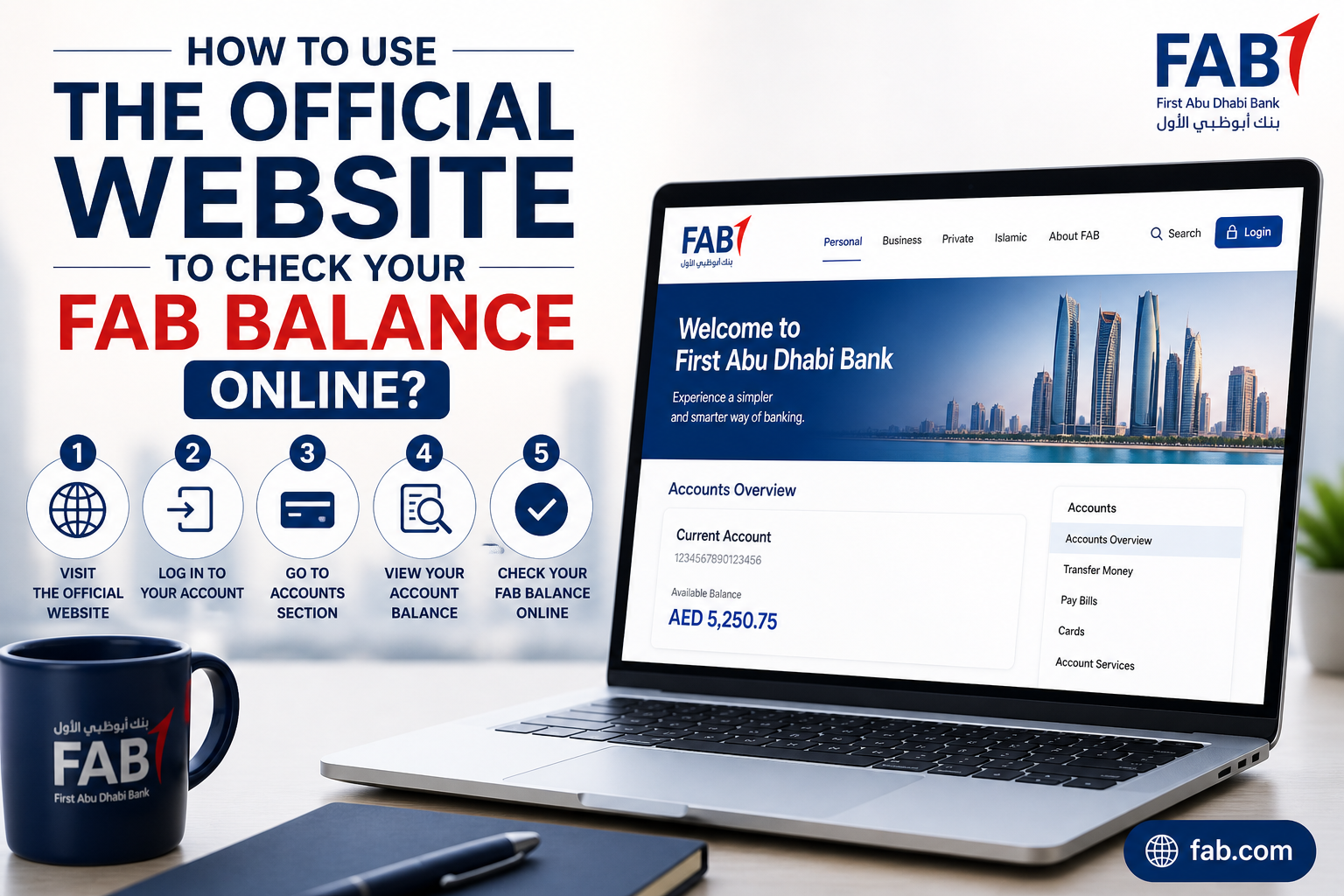
How to Use the Official Website to Check Your FAB Balance Online?
Go to the official FAB website. Click “Personal Banking Login.” Enter the username and password. Complete two-factor authentication with the OTP sent to the mobile phone. The account summary page loads. All account balances appear on one screen. No app download needed. Works on any computer or tablet.
For a secure fab card balance check, the website is a reliable option. This guide covers every step. Login. View balances. Download statements. Fix problems.
Why Use the Website Instead of the App?
The website has three advantages over the mobile app. First, no smartphone is required. Any computer or laptop works. Second, viewing account statements is easier on a larger screen. Third, printing balance records takes one click.
The website also works for customers who prefer not to install banking apps on their phones. It offers the same security features as the app. Two-factor authentication. Encrypted connection. Session timeouts.
What Is Needed Before Logging In
Four things are needed before starting.
- 1) Registered username and password. These are created during online banking registration. Keep them written down in a safe place.
- 2) Registered mobile number. The bank sends a one-time password to this number. The number must match bank records.
- 3) A Computer or tablet with internet. Any device with a web browser works. Chrome, Safari, Edge, or Firefox.
- 4) Web browser. Modern browsers work best. Older browsers may not support the banking website.
Do not use public computers for banking. Library computers. Hotel business centers. Airport terminals. These devices may have malware.
Step-by-Step Guide to Check Balance Online
Step 1: Go to the Official FAB Website
Open a web browser. Type the official FAB website address. Look for the padlock symbol next to the address bar. That means the connection is secure. Do not use third-party websites. Only the official domain.
Step 2: Click Personal Banking Login
Look at the top right corner of the homepage. Two login buttons exist. “Personal Banking” for individual customers. “Corporate Banking” for businesses. Click “Personal Banking Login.”
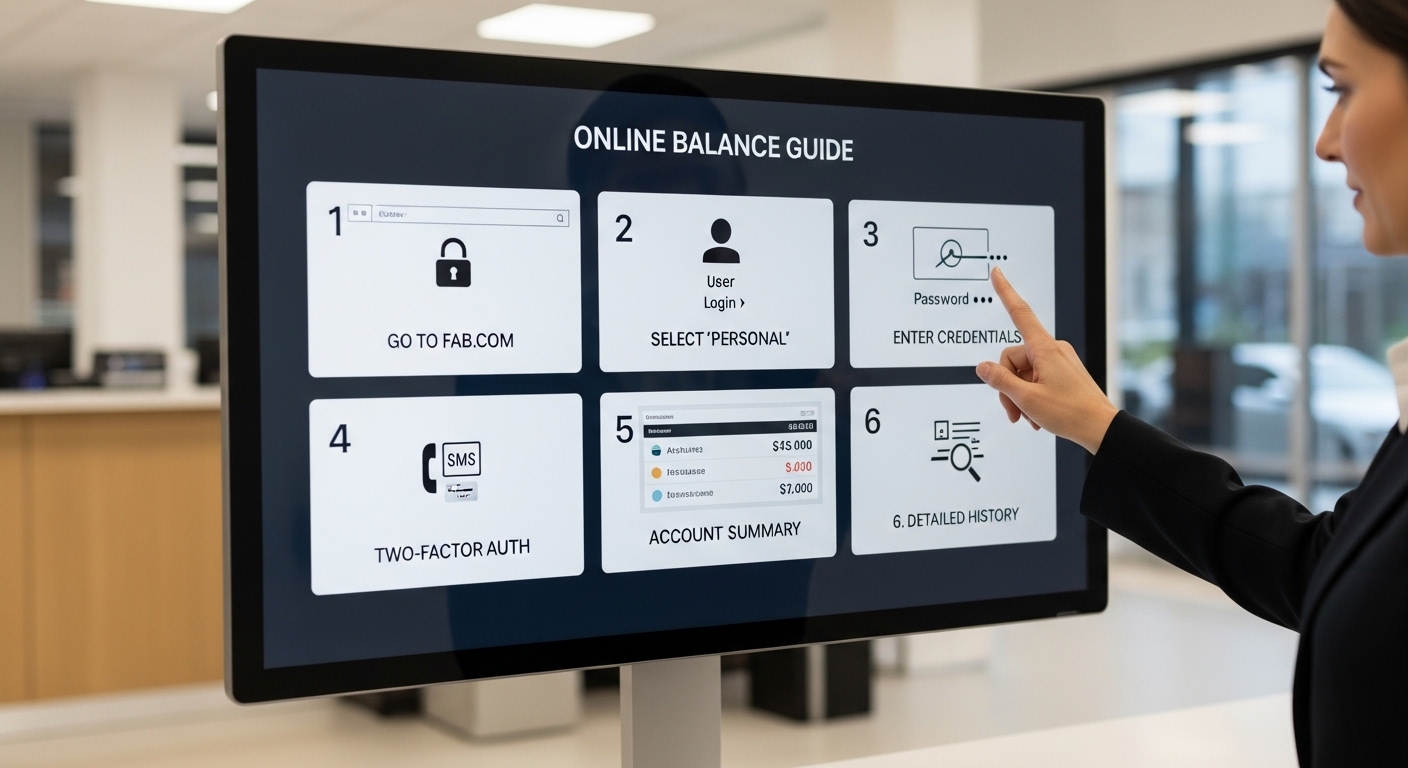
Step 3: Enter Username and Password
The login screen appears. Two empty fields show up. Username. Password.
Type the username exactly as created during registration. Upper and lower case matter for the password. Passwords are case sensitive. “Password123” is different from “password123.”
Click the “Login” button.
Step 4: Complete Two-Factor Authentication
The website sends a one-time password to the registered mobile number. This happens automatically. Check the phone for an SMS from FAB.
Enter the 6-digit code within 60 seconds. The code expires quickly for security. If the code expires, click “Resend Code.”
Step 5: View Account Summary Page
After the correct code entry, the account summary page loads. This page shows all accounts linked to the profile. Salary account. Savings account. Current account. Credit cards. Loans.
Each account shows two numbers. Current balance. Available balance.
Current balance is the total money before pending transactions. Available balance is the amount ready to spend now.
Step 6: Check Detailed Balance
Click any account on the summary page. A detailed view opens. Full transaction history appears. Each transaction shows the date, description, and amount. Pending transactions have a clock icon.
Filter the history by date range. Last 7 days. Last 30 days. Custom range. Filter by transaction type. Purchases only. Deposits only.
Understanding the Account Summary Page
The account summary page shows everything in one place.
Current balance. Total money in the account. Includes pending transactions that have not cleared.
Available balance. Money ready to spend right now. This is the number that matters for daily spending.
Linked accounts list. All accounts under the same profile. Click any account to see its details.
Credit card balances. Outstanding amount owed. Due date. Minimum payment.
Loan accounts. Outstanding principal. Next payment date.
How to Download Balance Statements
Need a record of the balance on a specific date? The website makes this easy.
Select the account from the summary page. Click “Statements” or “Account History.” Choose a date range. Last month. Last three months. Custom range.
Click “Export” or “Download.” Two formats available. PDF for printing. Excel for spreadsheets.
Downloaded statements help with visa applications. Tenancy contracts. Loan pre-approvals. Tax records.
Troubleshooting Website Login Issues
Forgot username or password
Click “Forgot Password” on the login screen. Enter the registered mobile number or username. FAB sends a reset link via SMS or email. Click the link. Create a new password. Must be 8 characters minimum. One number and one capital letter required.
If the username is also forgotten, call FAB customer service. Have the debit card and Emirates ID ready for verification.
OTP not arriving
Check if the mobile number on record is correct. Wait 60 seconds. Click “Resend Code.” Do not request more than three times. Check the phone’s spam or blocked messages folder. Restart the phone. Network refresh often solves the problem.
Website not loading
Try a different browser. Chrome, Safari, Edge, and Firefox all work. Clear browser cache and cookies. Old data can interfere with banking websites. Try during off-peak hours. Early morning, between 6 AM and 8 AM, works best.
Account not showing on the summary page
The account may not be linked to the online banking profile. Call FAB customer service. Request to link the missing account. The process takes a few minutes.
Security Tips for Online Banking
- Use only the official FAB website. Check the address bar before entering any details. Look for the padlock symbol.
- Never share the one-time password. FAB will never ask for an OTP. Not by call. Not by SMS. Not by email. Anyone asking is a scammer.
- Log out after each session. Do not just close the browser. Click the “Log Out” button. This ends the session properly.
- Do not save passwords in the browser. Browser saved passwords can be stolen. Type the password each time.
- Keep the computer updated. Install security patches. Use antivirus software.
Frequently Asked Questions
Q1: Is the FAB website free to use for balance checks?
Yes. The website is completely free. Internet service provider charges may apply.
Q2: Do I need the mobile app to use online banking?
No. The website works independently. No app required.
Q3: What is the difference between the current and available balance on the website?
Current balance includes pending transactions. The Available balance is ready to spend.
Q4: How long does the website stay logged in?
The website times out after 5 to 10 minutes of inactivity. This is for security.
Q5: Can balance be checked without receiving an OTP each time?
No. Two-factor authentication is required for every login.
Q6: Does the website work on mobile phones?
Yes. The website works on any browser, including mobile phones.
Q7: How to download a bank statement with balance history?
Select the account. Choose a date range. Click Export to PDF or Excel.
Conclusion
Using the FAB website to check a balance takes less than two minutes. Go to the official site. Click Personal Banking Login. Enter username and password. Complete two-factor authentication. The account summary page loads with all balances. The website works without a smartphone. Without an app. On any computer or tablet. Statements can be downloaded and printed. For a secure and complete fab card balance check, the official website is a trusted option. Bookmark the correct URL. Keep login details safe. Check balances anytime.